
Start with the original clothing gallery
COSTUME-DB-01 is the free clothing reference collection published by ギア (@giaaibusi). It currently lists 1,407 fictional AI-generated outfits across eight categories. These are clothing designs for image-reference workflows, rather than photographs of products to buy. Download an individual reference and use a separate image editor or generator with your character.
The useful task behind the trend is a wardrobe for a character you already have: choose a visible outfit instead of knowing every fashion term or asking the model to invent the design. Image 1 provides the character and image 2 provides the clothes. The gallery supplies the reference; the image tool you choose performs the generation.
The Chinese paipiange/nvzhuang repository is a third-party adaptation. The original gallery is the source for creator identity, current downloads and image-use conditions. Gender Swap AI and this Guide are independent from both. No code, installation or API key is needed to use our hosted two-image tool.
Download one clothing reference
Open the original gallery in a separate tab. Browse a category that fits your character's scene, or use the gallery's search to narrow the designs. Search terms can describe a clothing item, season, or identifying detail. Read the original labels and look at the whole outfit rather than choosing from the thumbnail alone.
Select a card to open its larger preview. Find the button labelled "元サイズをダウンロード(PNG)", meaning download the original-size PNG. Use that button for the individual reference you want. Keep track of the file you downloaded, then return to the outfit changer and upload it into slot 2, 'Outfit reference'. You do not need to join the creator's community to use the gallery's visible download controls.
The large preview and the original download are different actions. Opening a displayed WebP image is not the same as downloading the original PNG. On a phone, the browser may place the file in Downloads or ask where to save it. If you cannot find the file in your photo picker, use the device's file picker and look in Downloads.
This is a manual, single-reference workflow. Clicking a card in the original gallery does not send the image into our upload slot. The websites do not share a selection interface. Do not collect the whole library: the original site prohibits bulk downloading and redistribution of its image files. Keep the source page handy to review the chosen outfit and its terms.
Open ギア's original gallery ↗Give the two images different jobs
Use JPG, PNG or WebP. Put one character in image 1 and one complete outfit in image 2. For COSTUME-DB-01 references, choose a suitable fictional adult character: the original source excludes real-person and minor depictions. A clear face, hairstyle and visible body outline give the request a useful identity reference.
Match the crop to the change. Use a full-body character for a full dress, trousers and shoes. With a head-and-shoulders image, start with the collar or jacket visible in that crop; asking for a whole body introduces more details for the model to invent. Choose an unobstructed outfit with a readable neckline, sleeves, waist and hem.
For screenshots, crop away the website, captions and other outfits in your device's editor before uploading. This page has no crop tool. If your own clothing reference contains a model, specify that it supplies only clothing; the identity, pose and drawing style should come from image 1.
Check both upload previews before generating. Our clothing buttons replace image 2 only and keep your text and current result. Try these two images replaces both inputs and restores the starting instructions. Neither action generates automatically. When switching to new clothes, remove any old garment description that conflicts with the reference.
Have two images? Change the outfitMake the clothing request explicit
Choose Keep the character when the face, hair, proportions, pose, background and visual style should stay consistent. Choose Match outfit details to emphasize garment shape, color, materials and layers. Full-body look also requests a relaxed standing pose and a simple studio background, so choose it when you want those composition changes.
A suggestion replaces the entire editable instruction without changing the images or generating. Choose it first, then add details from your own character and outfit. For example: "Keep the original eye color and hair shape. Use the collar and sleeve length from image 2." For one garment, try: "Replace only the jacket; keep the original trousers and shoes." When the outfit reference is a photo, ask to render the clothing in your character's illustration style.
To dress a male character in feminine clothes, preserve the character's gender and describe the clothes. Request a gender change explicitly when that is part of your goal. Selecting a dress alone adds no gender-conversion instruction.
The request guides a newly generated edit. It does not lock the original face or background pixels, and this tool has no mask or selected-region editor. If retaining those pixels is essential, use a selection-and-layer editing workflow. A more detailed prompt can describe a goal but does not add those controls.
A starting prompt for two-image clothing transfer
Use this as an editable starting point. Keep the image numbers aligned with the two upload slots. Add only the extra changes you want.
Image 1 is the character. Image 2 is the clothing reference. Edit image 1 so the character wears the outfit from image 2. Preserve the character's face, hairstyle, body proportions, gender, pose, background, and visual style. Use image 2 for the clothing design, colors, materials, and layers. Fit the clothes to the character while keeping the character recognizable.
See what each image contributes
Compare the starting character, the clothing reference, and a finished illustration. Both examples use the same starting character. The dress changes the wardrobe without requesting a gender change; the jacket example changes the layers, trousers, and shoes.
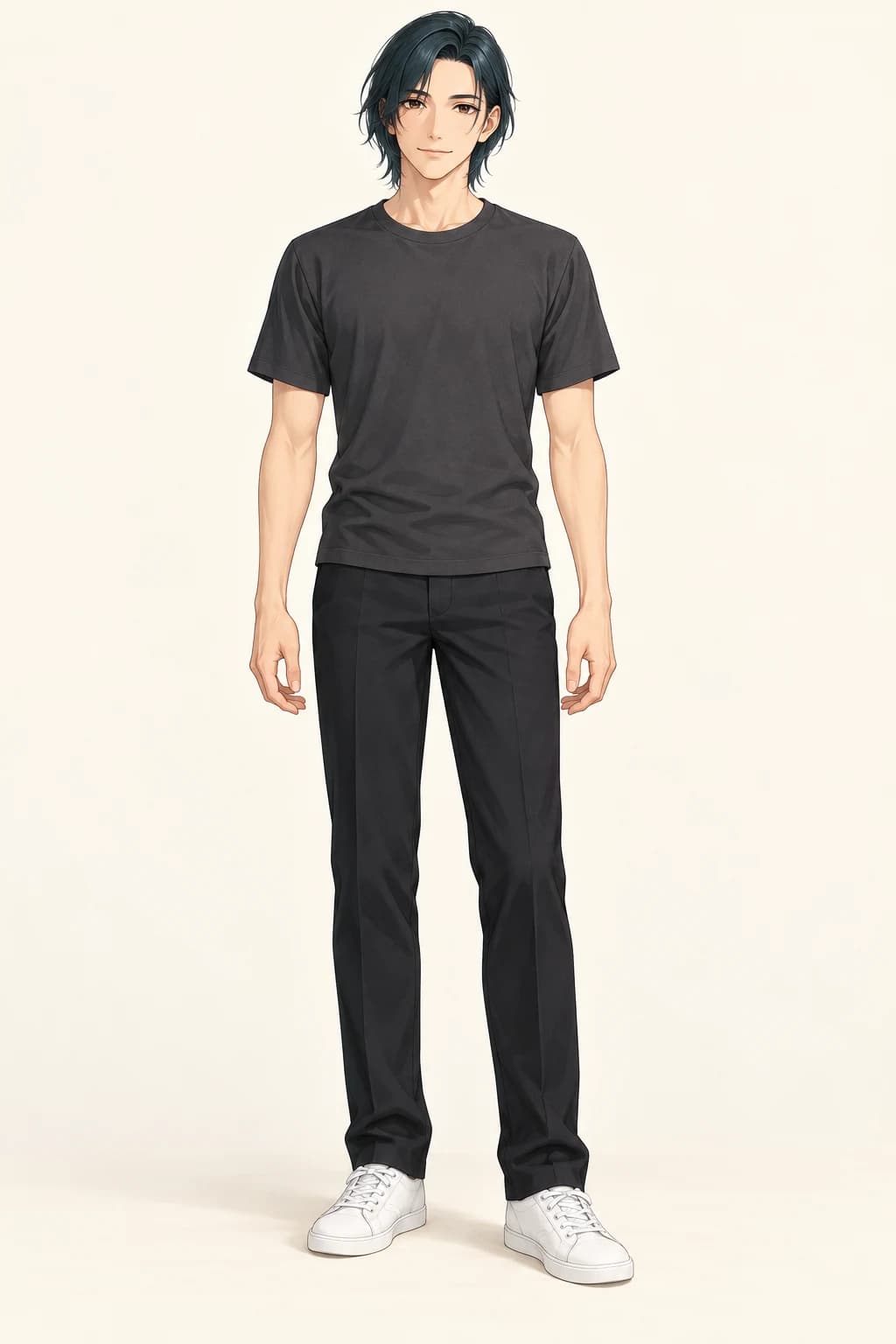
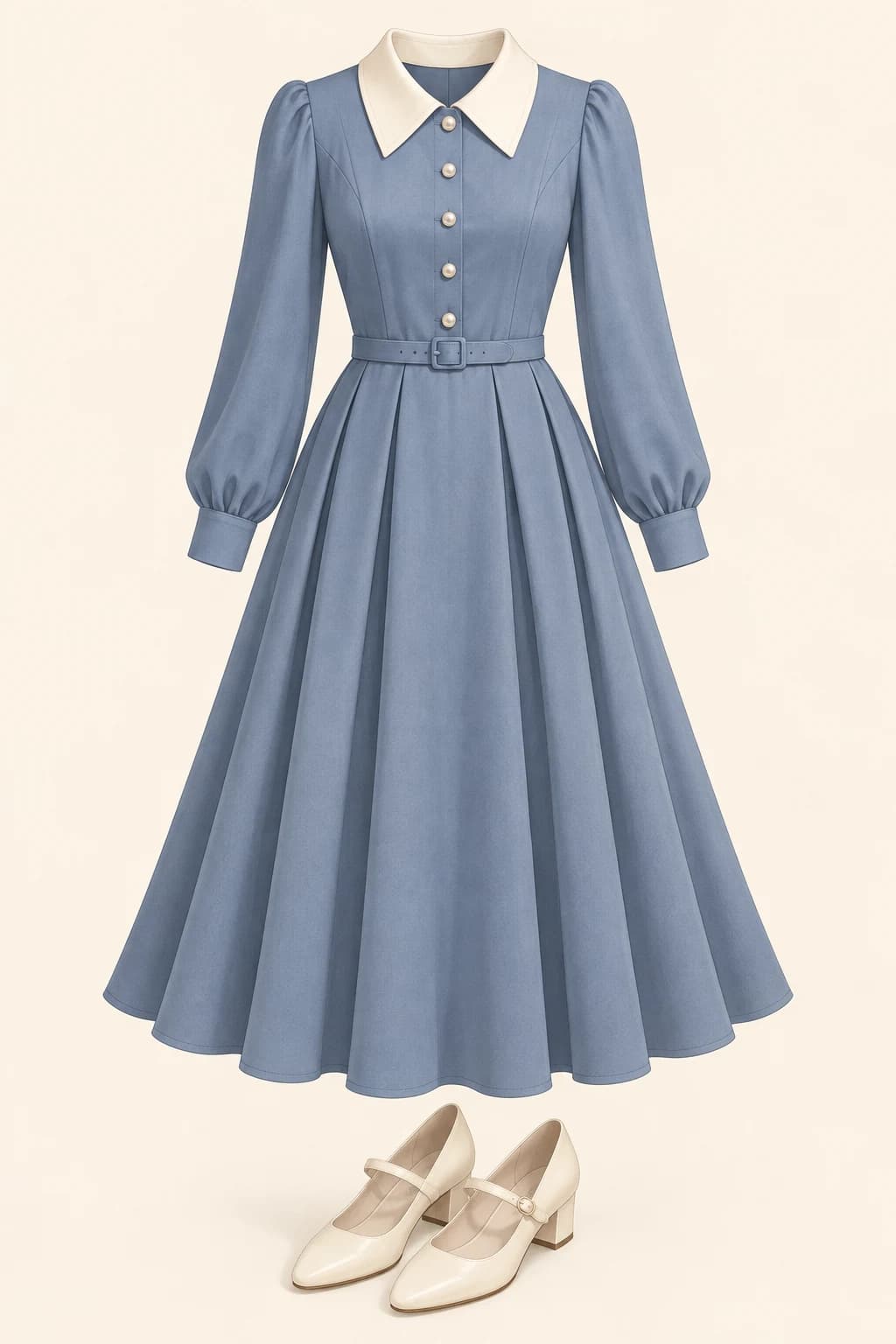
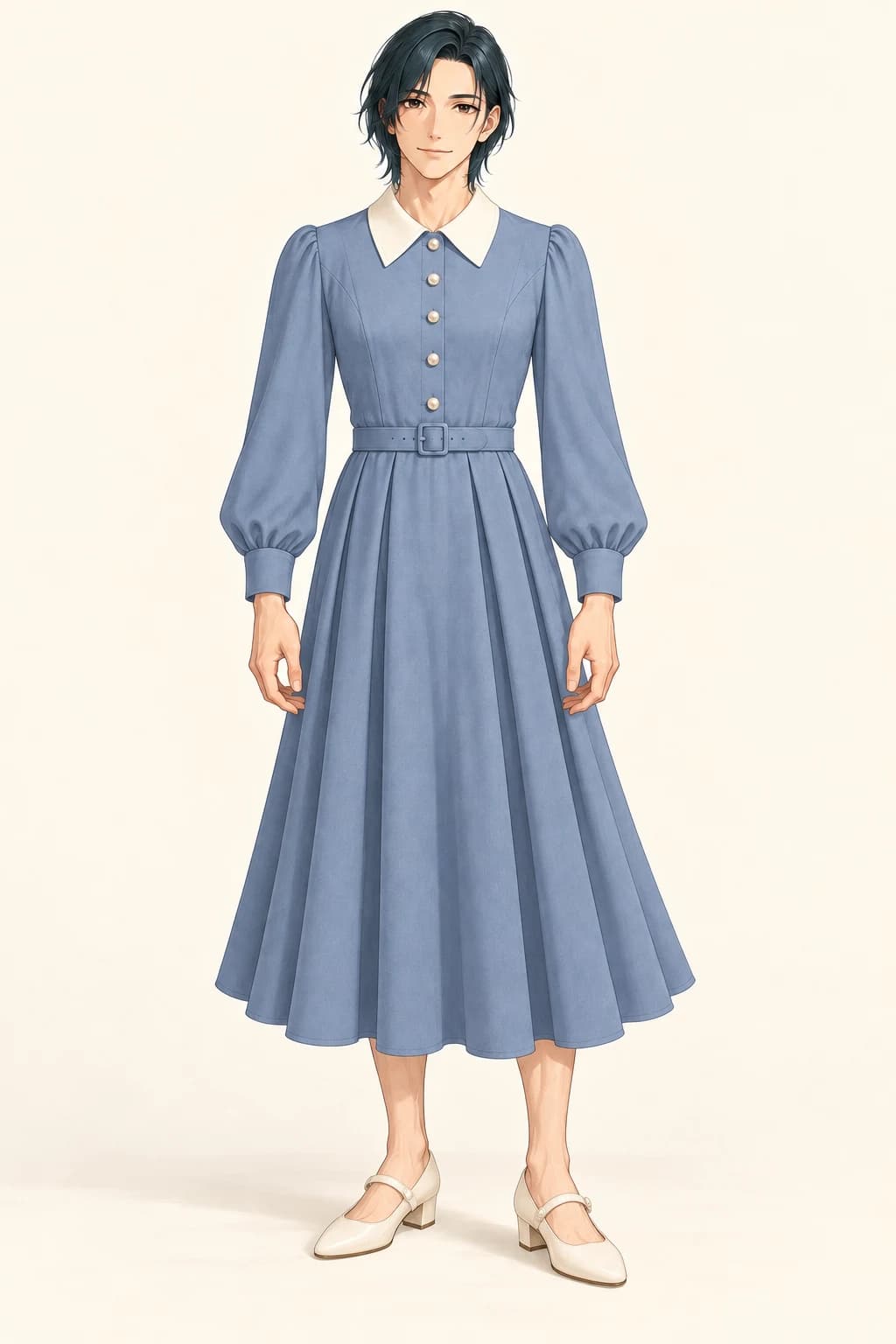
Try a dress on the same character
The ivory collar, blue skirt, belt, and shoes come from the clothing reference. The character's dark hair, face, pose, and illustration style come from the starting image. A feminine outfit does not have to change who the character is.
Loads both images and editable instructions. You choose when to generate.
Original AI illustration example, made separately from this website's generator. Your result depends on the model, images, and instructions.
Choose settings and generate one look
You can generate without signing in. The free allowance shown above is shared across Gender Swap AI's tools. GPT Image 2 Low can use free credits, while Pro settings need paid credits. Expand model and image settings to choose a model, quality or output shape; the generate button shows the current price.
Each used free credit becomes available again one week after its successful generation. A completed image uses credits even if its appearance disappoints you. Provider failures release reserved credits. Selecting examples and downloading a completed result do not start another generation.
After generation, compare the face, hairstyle, proportions and drawing style with image 1. Then check the outfit's silhouette, collar, sleeves, waist, hem, layers, patterns and shoes against image 2. Look at the hands and overlaps as well. Decide which visible difference matters before making the next request.
Have two images? Change the outfitFix a result or try another outfit
If the character, pose and background are already right, choose Use this result as your character image for a small clothing correction. The current result replaces image 1 and the outfit stays in image 2. A focused request could be: "Keep the face and dress unchanged. Make only the sleeves elbow-length."
When the face or composition has drifted, re-upload the original character into image 1. There is no restore-original button on this page. To compare a different outfit from the same starting point, keep that original in image 1, replace image 2 and update the instruction. Repeated edits to an altered face can carry the change into the next input.
The result's higher-quality action generates again from that result's saved inputs and instructions, at the next quality setting. It is not an upscale of the displayed image and does not apply later form edits. Use the main generation button for your revised instruction or new outfit. Higher quality and more attempts do not guarantee closer garment adherence.
- The face or hairstyle changed
Re-upload the original character into image 1 and keep the outfit in image 2. Choose Keep the character, then add the features you need to preserve.
Example instruction
Keep the face, hairstyle and proportions from image 1. Use image 2 only for clothing.
- The collar, sleeves or pattern are wrong
Check that these details are visible in image 2. Choose Match outfit details, then name the feature that needs correction. Start from a good result when its identity is already right.
Example instruction
Match the collar and sleeve length in image 2. Keep the character, pose and background from image 1.
- The pose or background changed
Use Keep the character for the original composition. Full-body look deliberately requests a standing pose and a studio background.
Example instruction
Keep the pose, framing and background from image 1. Replace only the clothing using image 2.
- It still follows the previous outfit
The outfit buttons keep your custom instructions. Remove wording about the old clothes and use one request that matches the new reference.
Example instruction
Image 2 is the new outfit reference. Replace the old outfit with this design; keep the character from image 1.
Where do my images go, and can I delete them?
When you select Generate, your images and instructions go through our server to the AI services needed for the result. The submitted inputs, result and settings are kept in private history for 30 days. You can download or delete creations in My creations. Downloading a result does not use another generation credit.
Guest history is linked to a protected browser cookie; changing browsers or clearing that cookie can lose access. Signed-in history belongs to the account. Restoring a history creation opens the general generator on the homepage; it is not an undo button inside this outfit tool.
Uploaded images and results made with uploads are excluded from our public gallery. With analytics consent, session recordings may include images visible on the page. The Privacy Policy explains the AI providers, analytics and retention details.
Privacy policyFree references, source terms, and generated results
The original creator permits individual reference use and editing for creative work, including commercial work under the original site's conditions. The image data itself, including processed copies, must not be redistributed, reposted or resold, and bulk collection is prohibited. The source also excludes real-person and minor depictions.
A third-party repository's MIT software licence does not automatically cover the upstream image collection. Use ギア's original site to check current permissions. Gender Swap AI links to that collection; our blue dress and casual outfit examples are separate original assets, with illustrations made independently from this tool's model API.
Our Terms permit personal or commercial use of generated results, subject to those terms and rights in the materials you supply. This does not grant rights to redistribute the original clothing files. The fictional designs do not supply a sewing pattern or predict measured fit. Review the character, reference and source conditions for the work you plan to publish.
Read the generated-result terms