Gender Swap AI
Account & credits

CHARACTERS → CHAT REACTIONS

AI Sticker Generator for Character Reactions

Describe your character or add a reference, then choose a sticker layout: one reaction, four, nine, twelve in portrait, or sixteen. You can also leave the layout open. Slice the result in your browser and save individual PNGs.

3 free credits every 7 days on GPT Image 2 Low. Other settings use paid credits.

Describe the appearance, outfit and emotions freely. Choose the layout below; switching layouts keeps your description.

3. Sticker layout (optional)

A consistent chibi reaction style. Choose an arrangement to apply its layout instructions, or leave it open. The four- and twelve-cell cards are layout diagrams.

Your result
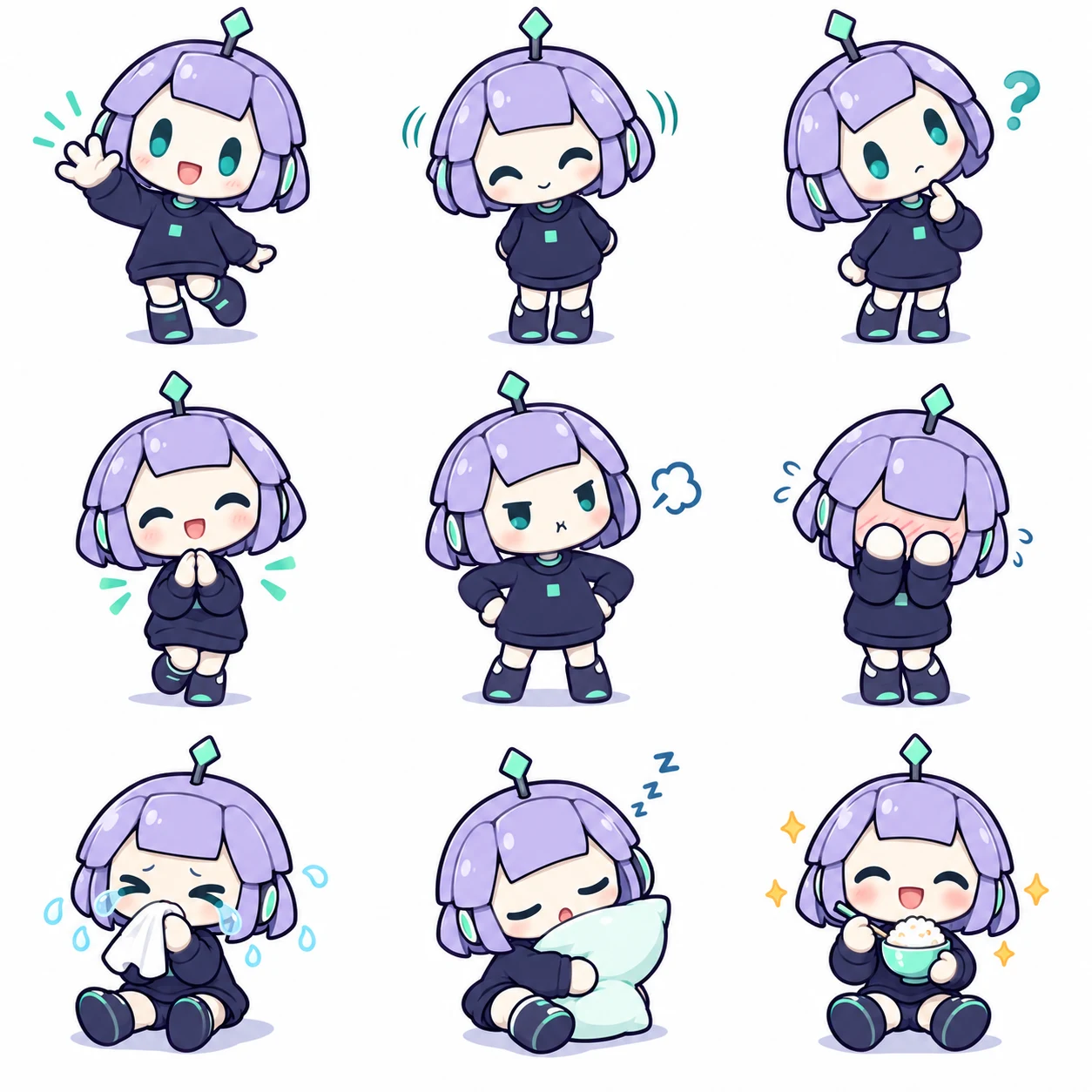
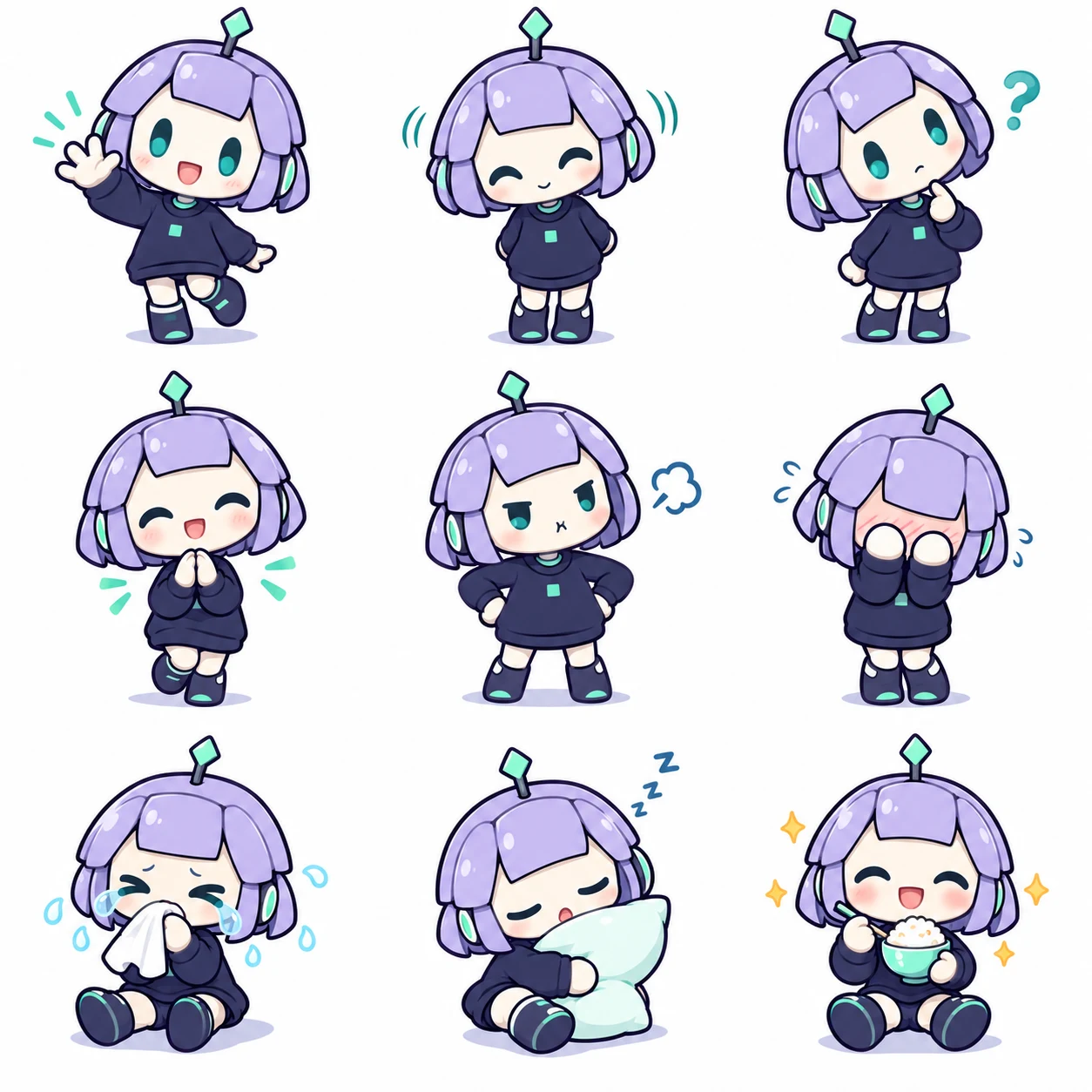
Nine everyday reactions of the same original AI robot assistant in a three by three sheet

Example · original assistant mascot

An original assistant in a nine-sticker example. Describe your own character and choose a layout from the cards.

One Reaction, Nine Stickers, or Sixteen

Choose the layout for the conversation you have in mind. These are AI-created illustration examples, not a promise that each new request will return the same artwork. Edit the visible prompt before you generate.

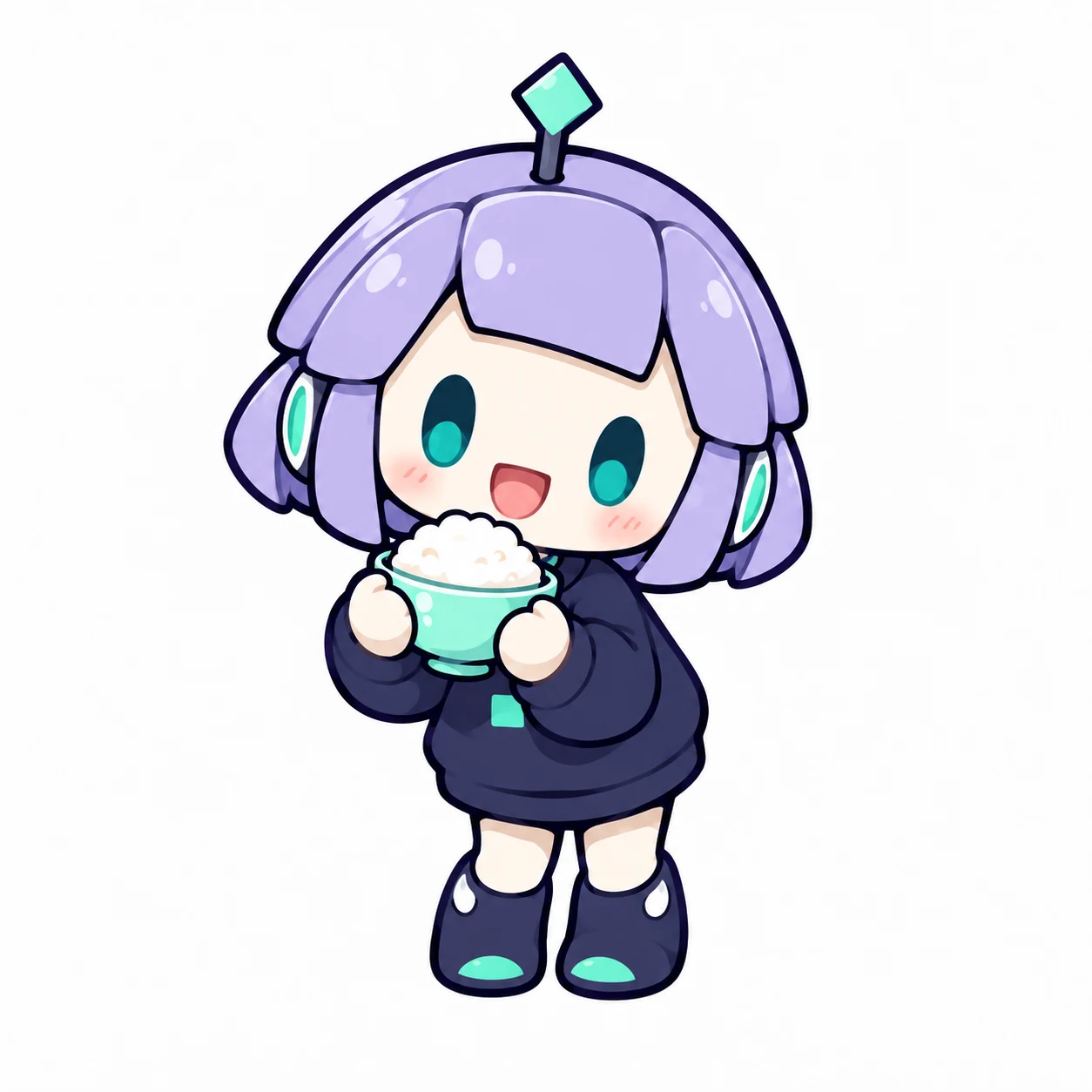
Original lavender-haired robot assistant happily holding a rice bowl

One reaction, one clear message

Start with a small moment you would actually send: a bowl of rice, an awkward apology or a delighted thumbs-up. This original assistant says everything through its pose; add your own short caption when you want a different reply.
Your character and reactions

Use an uploaded character reference for identity if supplied: keep its face, hair, colors, outfit and distinctive features while changing only expression and pose. Without a reference, draw this original character: An original chibi AI assistant girl with a round ivory robot face, two teal oval LED eyes, short lavender bob-shaped metal hair panels, a small mint diamond antenna, navy sweatshirt with one plain mint square, and rounded boots. Two-head-tall proportions, bold indigo outlines, simple cel shading. Create one square chat reaction image. The character hugs a small bowl of rice, leaning forward with delighted eyes and an open smile. Keep the face visible, hands readable and the entire antenna and feet inside the frame. White background, white sticker outline, generous empty margin. No text, logos or watermark. Make the emotion legible at a small chat size.

Nine everyday reactions of the same original AI robot assistant in a three by three sheet

Nine everyday reactions

A nine-sticker sheet gives one character a useful everyday vocabulary. Greeting, thinking, thanks and sleepy reactions should be visibly different before any words are added. Use this no-text layout to check identity, spacing and easy cropping.
Your character and reactions

Use an uploaded character reference for identity if supplied: keep its face, hair, colors, outfit and distinctive features while changing only expression and pose. Without a reference, draw this original character: An original chibi AI assistant girl with a round ivory robot face, two teal oval LED eyes, short lavender bob-shaped metal hair panels, a small mint diamond antenna, navy sweatshirt with one plain mint square, and rounded boots. Two-head-tall proportions, bold indigo outlines, simple cel shading. Create one square sticker sheet, exactly 3 rows and 3 columns, with 9 independent reactions. Read left to right, top to bottom: waving hello; nodding acknowledgement; tilted-head confusion; hands together in thanks; pouting with arms akimbo; shy hiding face; crying into a tissue; sleepy holding a pillow; delighted holding a rice bowl. Same character, proportions, line weight and palette in every cell. Every character, prop, outline, antenna and foot stays within the middle 75% of its own equal-sized cell. Leave clean, continuous white gutters. Pure white background. Do not draw grid lines, captions, numbers, bubbles or a watermark. These are separate stickers, not a story.

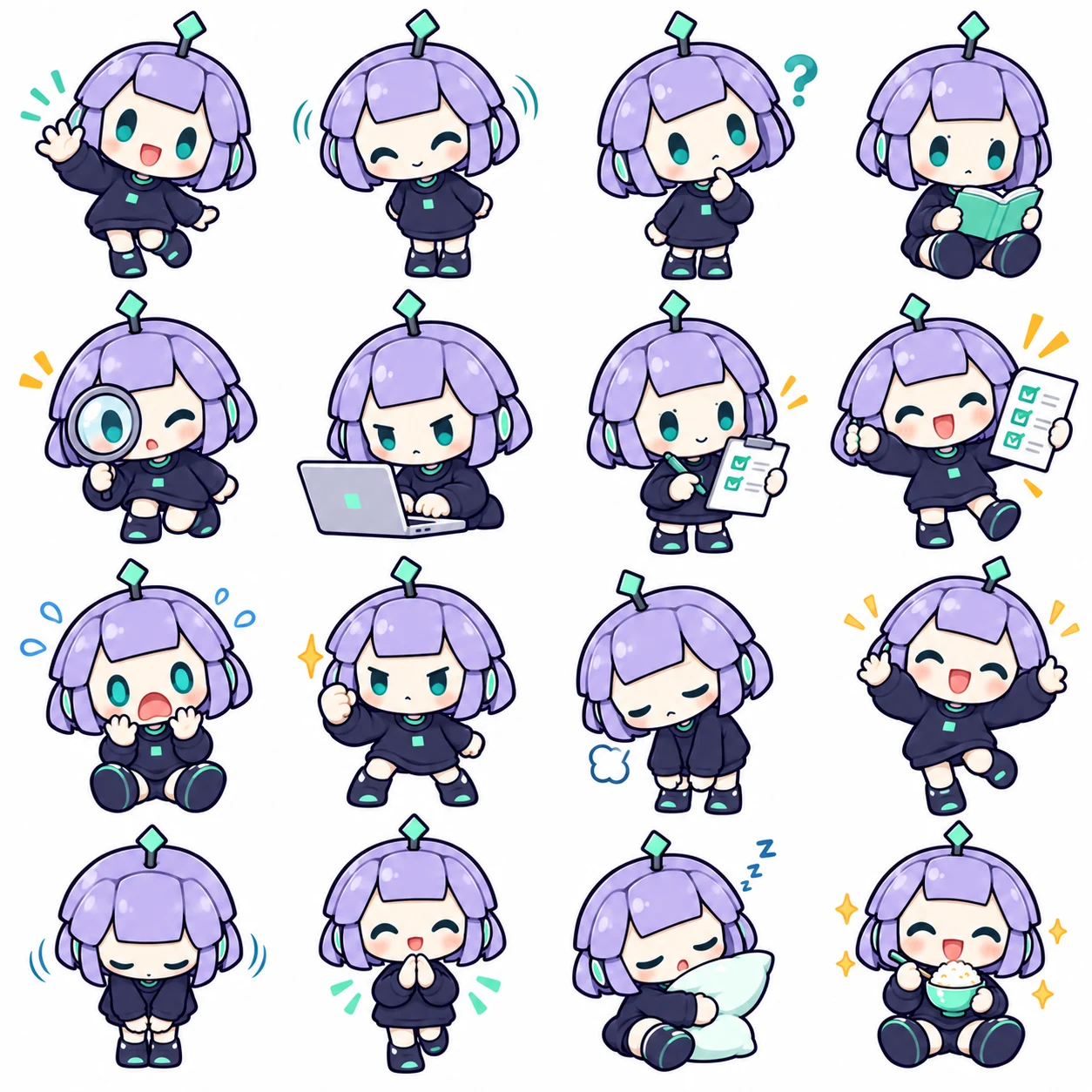
Sixteen workday reactions of an original AI assistant in a four by four sticker sheet

A sixteen-reaction workday

A larger sheet can cover a whole day: reading, searching, coding, testing, an error, a retry and finally a break. Keep poses compact so the small cells stay readable. Check the sheet before saving individual stickers, especially at the edges.
Your character and reactions

Use an uploaded character reference for identity if supplied: keep its face, hair, colors, outfit and distinctive features while changing only expression and pose. Without a reference, draw this original character: An original chibi AI assistant girl with a round ivory robot face, two teal oval LED eyes, short lavender bob-shaped metal hair panels, a small mint diamond antenna, navy sweatshirt with one plain mint square, and rounded boots. Two-head-tall proportions, bold indigo outlines, simple cel shading. Create one square sticker sheet with exactly 4 rows and 4 columns, 16 equal cells, one complete character per cell. Left to right, top to bottom: waving hello; nodding; thinking with hand on chin; reading a book; searching with a magnifying glass; typing on a laptop; checking a checklist; proudly showing a completed task; shocked at an error; determined retry with clenched fist; tired with drooping shoulders; celebrating with raised hands; apologetic bow; thanking with hands together; sleepy with pillow; happily holding rice. Same face, outfit, proportions, colors and clean linework throughout. All characters and props remain within the central 75% of their own cells with wide white gutters and no overlap. Solid white background. No written words, numbers, labels, grid lines, speech bubbles or watermark.

AI Character Reactions from the Community

Browse selected AI model personifications: a thinking Claude, a drawing Gemini, a hungry DeepSeek and a GPT dragon girl at work. These are community artworks by their credited creators, separate from the original assistant examples above. Open an image for its source and usage terms.

Gemini and the banana paintbrush

CrossPet (lokicorvus)

CC BY-NC-SA 4.0

Time for Rice

上善无形、ZipZipPipe original character · CrossPet (lokicorvus) adaptation

CC BY-NC-SA 4.0

Mission Accomplished

ZipZipPipe original character · CrossPet (lokicorvus) adaptation

CC BY-NC-SA 4.0

The community images keep their original licenses, including non-commercial restrictions. Find the artist and character version before reusing a picture. A downloadable image does not grant commercial rights.

From Character Reference to Chat Reaction

  1. 1

    Pick the character and its reference

    You can begin with a written description of an original AI mascot. If you already have a character, upload a clear reference that you are allowed to use. One readable front or three-quarter view is often a better starting point than a crowded collage. The reference tells the generator what to preserve; your prompt tells it what to change. A character name alone can refer to different community designs, so describe the features that matter to your version.

  2. 2

    Choose one reaction or a whole sheet

    Use one reaction, a small set of four, nine or sixteen everyday stickers, or a portrait sheet with three columns and four rows. Describe the character and reactions in the input; choose the arrangement with the layout cards. Switching layouts keeps your description, and tapping a selected card again clears the layout.

  3. 3

    Review, save and keep refining

    Generate when the input is ready, then inspect the returned image. Count the reactions, look at faces and hands, and check that hair or props stay inside each cell. Download the whole result or use the splitter below the result to save a selected PNG cell. Continue editing uses the existing result as a new reference, so you can ask for a clearer expression or a simpler pose. A second generation uses the credits shown on its button.

Small choices that make a better sticker

Give the reaction a job

Start with a message you want to send: hello, let me think, I am working on it, thank you, or finally done. Describe a physical action that communicates it. Raised eyebrows and an open palm can read as a question; a tucked-in pillow and half-closed eyes suggest sleep. The best character stickers remain readable when you reduce them to a small chat preview. A detailed landscape may make a beautiful illustration while hiding the reaction you actually wanted.

Keep the identity, simplify the drawing

A chibi sticker can change proportions while retaining the character's identifying features. Keep a distinctive hair shape, accessory, eye color, outfit palette or tail. Repeat those choices across a sheet. Simplify tiny buttons, long ribbons and complicated scenery so the silhouette remains clear. For AI model girls, state which artist's design you are referencing; the same model can have several fan-made appearances. Our character profiles keep versions and sources together so you can choose deliberately.

Leave room between the stickers

A grid is useful only when its images can be separated. Ask for equal cells, clean gutters and complete figures. Long hair, dragon wings and whale tails need enough space to stay inside their own cell. Request compact poses and curl long parts inward. Nine cells leave more room for detail than sixteen cells at the same overall image size. Higher resolution can help readability, but it does not guarantee that the generator follows every row or column perfectly.

Treat captions as part of the composition

For a first sheet, a no-text prompt helps you judge the drawing and layout. To add words, put the exact short text in quotation marks and say where it belongs. Keep it away from the face and outside the outline of important props. Review spelling and the connection between each caption and its reaction. A clear two-word message often works better than a whole sentence in a small cell. You can also edit a single saved cell rather than changing the entire sheet.

Choose a background for the way you share

A white-background reaction image works as a square picture in a conversation. A cutout sticker needs genuine transparent pixels outside its outline. A white rectangle or a drawn checkerboard is not transparency. The splitter preserves the background of the image you give it; exporting PNG does not remove that background. Check your downloaded image in the app where you plan to use it. The example prompts use white backgrounds so the layout and expressions are easy to inspect.

Build a set in a consistent visual language

Think about the whole set when choosing your line weight, colors, proportions and props. A nervous reaction and a celebration can feel like the same character without having the same pose. Keep the camera distance similar, avoid mixing a full-body scene with an unrelated close-up, and make the gestures distinct. If a sheet repeats the same expression several times, change one cell's description to include a clear action rather than adding more adjectives to the entire prompt.

Slice a Sticker Sheet into Individual PNGs

Use the splitter on your generated result, or open a sheet you already saved. Choose its actual grid, inspect the highlighted cell and download that cell. The image is split locally in your browser; splitting does not use generation credits.

Save a sticker from this sheet

Choose the grid that matches the image, then tap a cell.

This selection stays in your browser. It is not uploaded for splitting.

Sticker sheet with selectable crop cells

Check the highlighted crop before saving. Equal grid cuts preserve the original background; they do not move or remove parts that cross a cell.

Questions before making your stickers

Do I need a photo or a character reference?
No. Describe an original character to generate from text, or add a reference when you want to keep an existing appearance. Upload a picture you are allowed to use. A clear reference and a specific reaction make the creative request easier to understand.
Which sticker layouts can I choose?
Choose one image, a 2×2 set of four, a 3×3 set of nine, a portrait sheet of twelve (three columns and four rows), or a 4×4 set of sixteen. You can also leave the layout open and describe it yourself. A multi-sticker result starts as one sheet; check the actual rows and columns before cutting it. If a figure crosses a boundary, adjust the layout or generate that reaction separately.
Are these transparent stickers or animated GIFs?
This tool creates still images. The example prompts use a white background, and the splitter keeps whatever background the source has. Saving a PNG cell does not make it transparent or animated. Use the resulting picture in your chat app or prepare it further for that app's sticker requirements.
What can I use for free?
GPT Image 2 Low can use your available free credits. You receive three free credits, restored individually seven days after use. Other configurations use paid credits. The generator shows the selected configuration and cost before you submit; local splitting does not spend credits.
Will the generator reproduce a collected artwork?
The collected images are examples of community reactions, not output samples from this generator. Their authors and source posts stay attached. The reaction buttons fill our own editable instructions; they do not reveal or copy an artist's private generation prompt.
Where do my generated results go?
Use the result's download action to save the whole image, or save cells with the splitter. Existing history and continue-editing controls remain available through the generator. Publicly browsing a collection does not publish your own generated images into it.

Use the role that fits your next task. The character guide explains identities and reference art; the tutorial covers scene changes, styles and comic panels; this page focuses on chat reactions and sticker sheets.

CHARACTERS → CHAT REACTIONS

Give your character something to say

Start with one reaction or a whole sheet. Keep the prompt yours.

Make my stickers