Gender Swap AI
Account & credits

Your image. Your next change.

AI Photo Editor

Upload the image you want to edit. Describe what to change and what to keep. Add a reference image when words aren't enough.

Your edited image

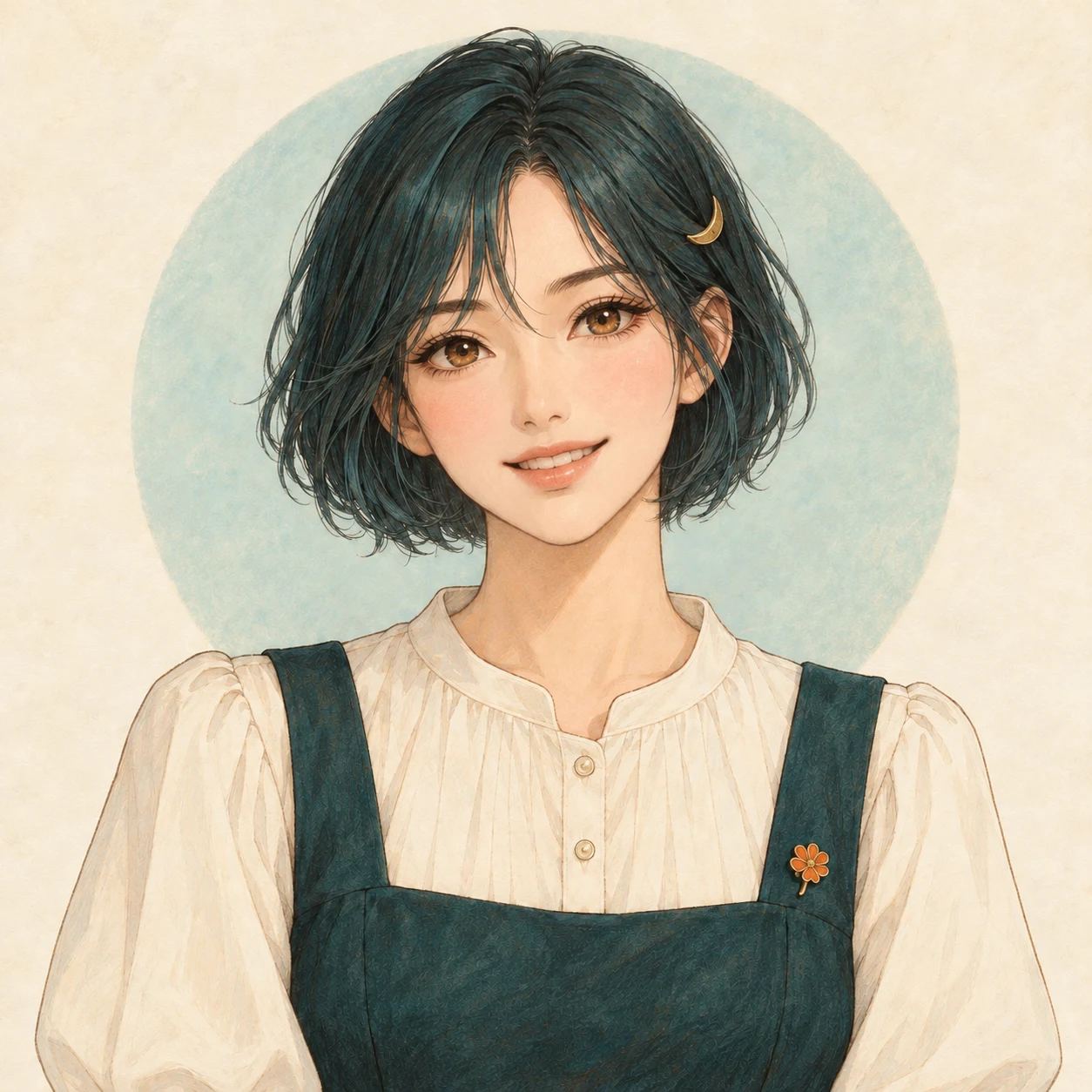
A smile, with the same character

Change the expression while keeping the bob, outfit, and framing.

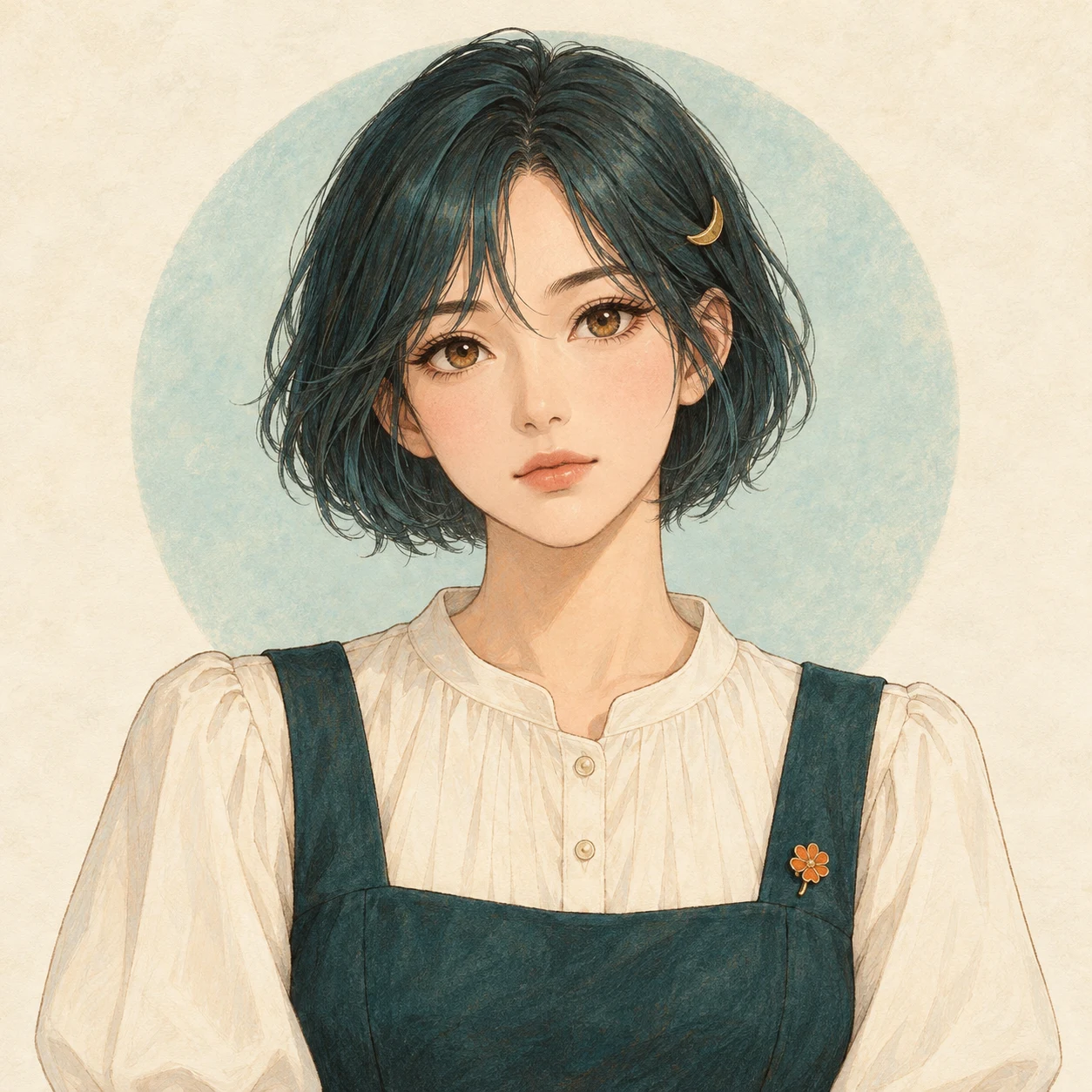
Original illustrated woman with a teal bob, crescent hair clip, and thoughtful expression
Original
The same illustrated woman smiling, with her hair, outfit, and composition retained
Edited example

Loads the original, any references, and the instruction. You choose when to generate.

Start with your weekly free credits on GPT Image 2 Low. The button shows the cost before you generate; Pro uses paid credits.

One small change. Or a little help from a reference.

Give each edit one clear goal. These examples pair the starting image with an instruction you can try and change yourself.

Original illustrated woman with a teal bob, crescent hair clip, and thoughtful expression
Original
The same illustrated woman smiling, with her hair, outfit, and composition retained
Edited example

Give your character a new expression

You like the character already. Ask for a smile and name the details that make her recognizable, instead of describing a new character from scratch.

Change her expression to a warm, happy smile with softly lifted cheeks. Keep her teal bob, gold crescent hair clip, amber eyes, outfit, illustration style, and the original framing and background.

Loads the original, any references, and the instruction. You choose when to generate.
Original character wearing a dark teal pinafore
Original
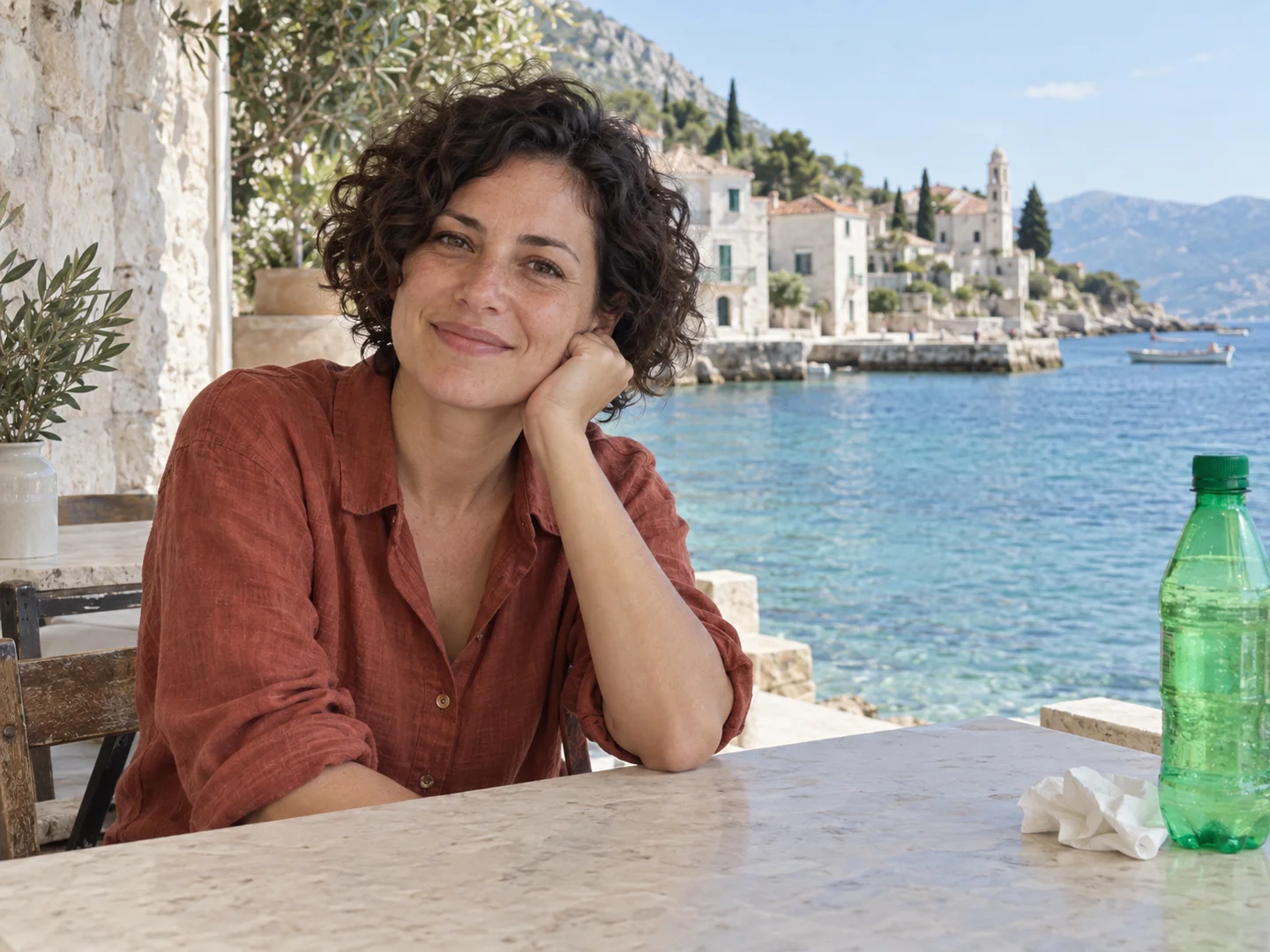
Waterfront portrait used only as a reference for the rust-colored shirt
Reference · color only
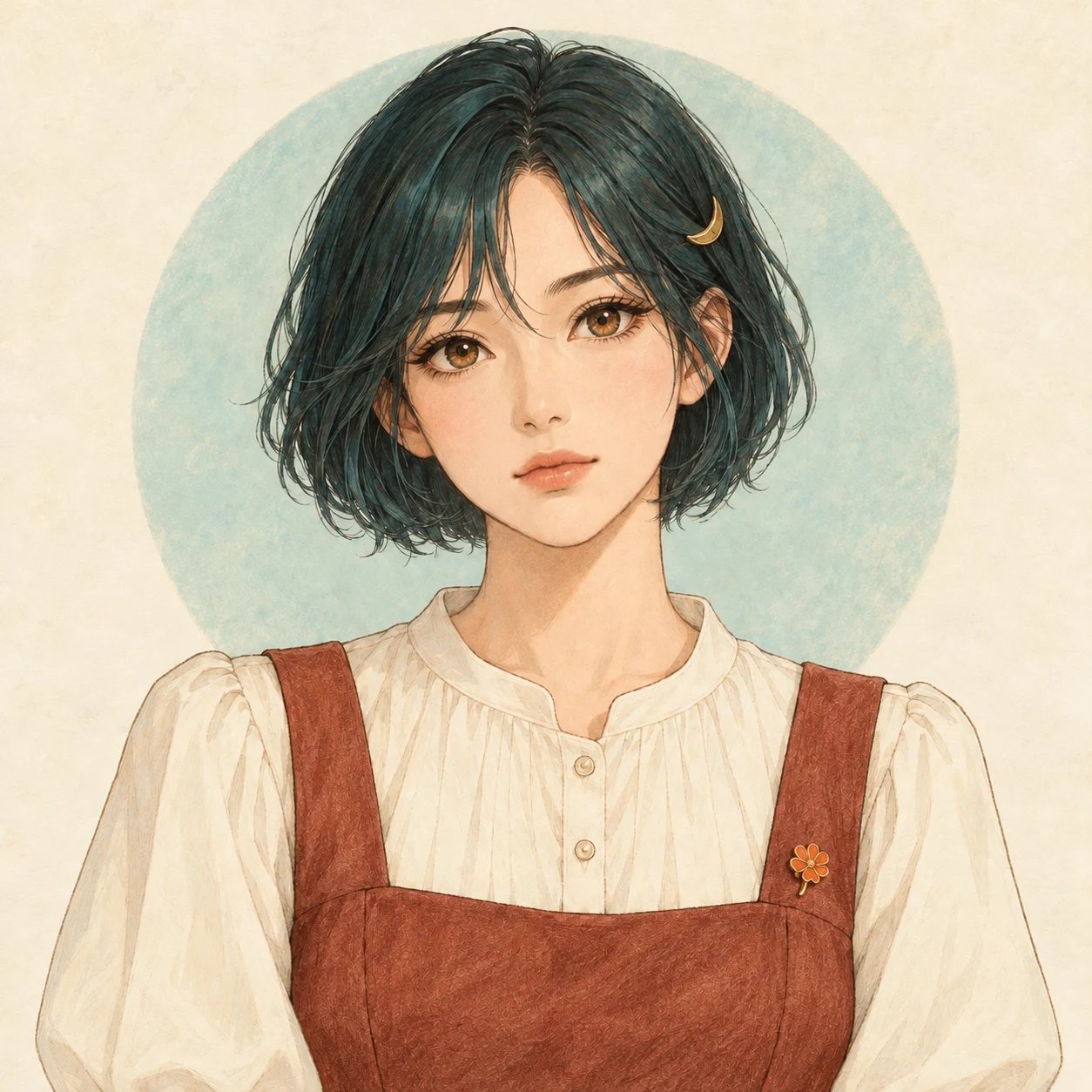
The same character with the pinafore changed to muted terracotta
Edited example

Borrow a color, keep your character

Image 1 is the character being edited. Image 2 supplies only the rust color of the shirt. The result changes the pinafore color and keeps the original character and setting.

Edit the character in image 1. Change only her pinafore to the muted rust color of the shirt in image 2. Keep the face, expression, hairstyle, ivory blouse, accessories, pose, background, and illustration style from image 1. Do not copy the person or setting from image 2.

Loads the original, any references, and the instruction. You choose when to generate.
Keep what you like. Change the part you have in mind.

You might recognize your character by her eye shape, hair clip, or the outline of her bob. Name those details before asking for a new expression. The original supplies her appearance; your words explain how much should change this time.

See three ways to describe a smile
Describe the size of the smile
A slight, closed-mouth smile is more specific than happy. If eye shape matters, also ask to keep the eyes open and preserve the direction of gaze.
Name the details that matter
Pick the important facial features, hairstyle, eye color, and accessories. If you also like the outfit, background, and framing, include them in the keep list.
Compare this version with the original
AI image editing can redraw other details. Inspect the face and clothing at full size, then check the overall style and crop before choosing a version to build on.

A second image: borrow the color, or try the outfit?

Put the character you want to edit in Original image. After adding a reference, call them image 1 and image 2 and describe the part you want to borrow. A specific reference role gives you a clear goal to check in the result.

I only want this color

Use image 2 for the outfit color while keeping the cut, fabric, and person from image 1. In the rust-color example above, the goal is a new color for the pinafore.

A starting instruction

Borrow only the rust color of the shirt in image 2. Keep the cut and fabric of the pinafore in image 1.

I want to try this outfit

For a change of design, name the neckline, sleeves, or pattern to borrow. Specify the face, hairstyle, and pose to keep, and inspect the new clothing structure in the result.

A starting instruction

Try the outfit design from image 2 on the character in image 1. Preserve the face, hairstyle, pose, and art style from image 1.

A reference image does not automatically become a color-only sample. Say which part to use, then check that its person or setting has not found its way into the result.

See the two-image setup and full instruction

From your original to the next version

  1. 1. Bring the image

    Upload the photo or character image you want to change. This is your original; extra references have a separate place.

  2. 2. Ask for one change

    Say what should change, then what should stay. If you add references, tell the AI which image supplies the subject, style, or pose.

  3. 3. Keep going, or keep the result

    Review the image at full size. Download a version you like, or choose Continue editing to use the result in your next edit.

Like the character, but not the expression yet?

The guide walks through a first edit, two-image references, and picking up a previous creation without starting over.

Read the image editing guide

You like this version. Where do you go next?

Download a result you like first. Then decide whether to refine this image or try the earlier inputs again: the next action depends on which starting point you want.

Build on this result
Choose Continue editing. The result becomes your new original, and the reference images stay attached. Review the images, then describe the next small change.
Try an earlier set of inputs again
Choose Restore creation in History to bring back that creation's saved original, references, instruction, and settings. Revise the request, then choose when to generate.
Try Pro with the same inputs
Generate another result from the original inputs at a higher quality setting. It uses paid credits and gives you another version to compare.
Understand Continue editing and Restore creation

Before your first edit

Gender Swap AI

Have a change in mind? Bring your image.

Start with an image you like and one expression or color to change.

Upload an image and start editing