
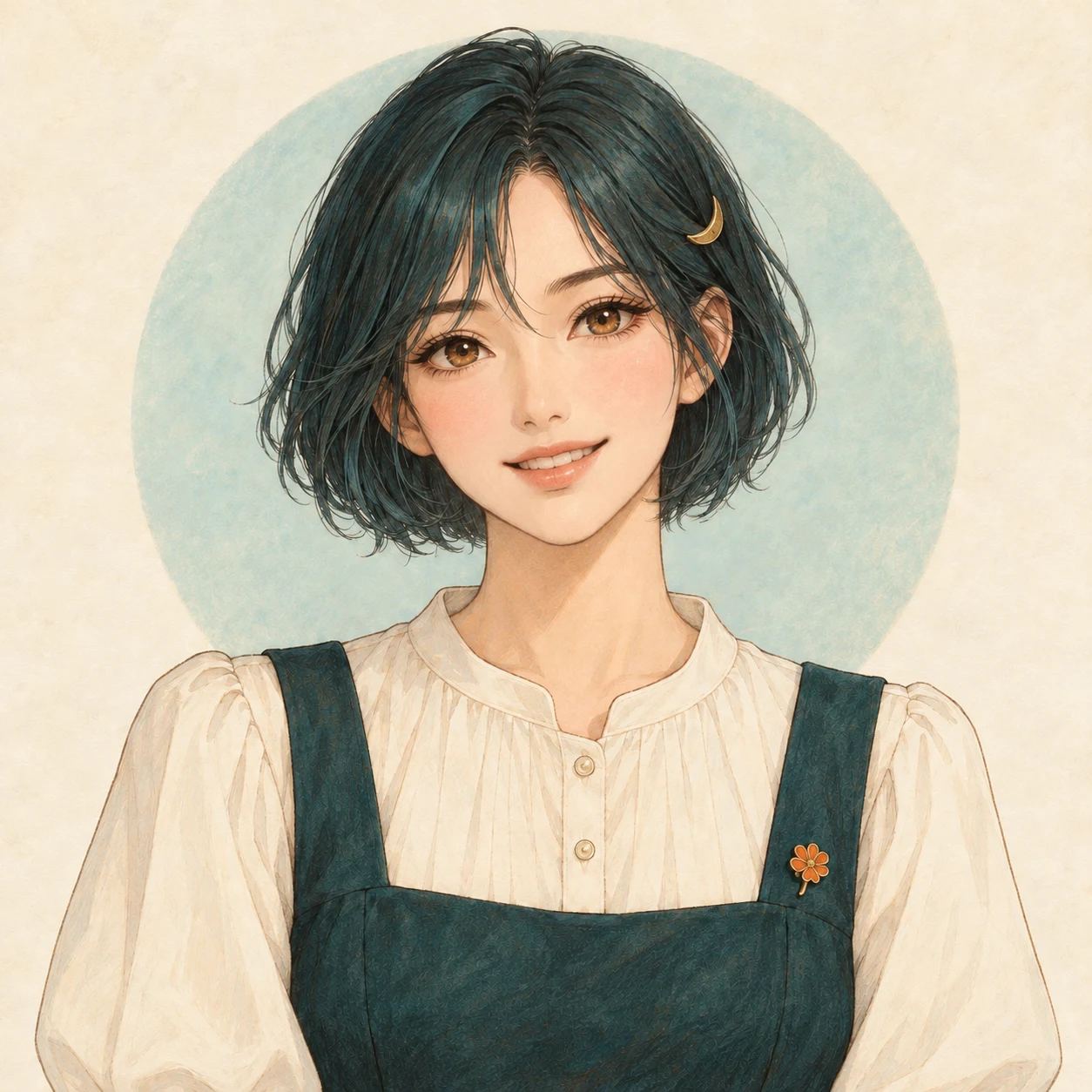
Start with one image and one change
For a character edit, upload the character as your original. Start with a small request, such as a smile. Name the recognizable features you want to keep: hair, clothing, eye color, and framing.
A useful instruction has two parts
- Change
- Give her a warm, happy smile.
- Keep
- Her teal bob, hair clip, amber eyes, outfit, style, and background.
Change her expression to a warm, happy smile with softly lifted cheeks. Keep her teal bob, gold crescent hair clip, amber eyes, outfit, illustration style, and the original framing and background.
Loads the original, any references, and the instruction. You choose when to generate.
Look at the result beside your original. Check the eyes, hair clip, clothing details, and crop as well as the new expression.
Be specific about the kind of smile
A slight smile and a broad grin give the same character a different mood. Choose a starting point below, then add the features you want to keep from your own image.
- A subtle smile
- Lift the corners of the mouth slightly, with lips closed. Keep the original eye shape and direction of gaze.
- A warm smile
- Give the character a relaxed, natural smile with gently lifted cheeks. Keep the eyes open and preserve the original facial proportions.
- A playful smirk
- Lift one corner of the mouth a little for a playful expression, without showing teeth. Keep the original face shape and eyes.
The mouth looks right, but the eyes still feel cold? Try a small follow-up: Relax the expression around the eyes very slightly. Preserve the eye shape, pupil positions, and gaze direction; do not turn it into a squinting smile. Compare the eyes and face shape with the original, and keep the parts that already work.
Using two images? Give each a job.
The original is the image being edited. An extra reference can show a style, outfit, or pose that is hard to describe. Number them in upload order: original first, then references.
- Image 1 · Your original
- The character or photo you want to change. Put it in Original image.
- Image 2 · A reference
- The style, outfit, or pose you want to borrow. Add it under Reference images.
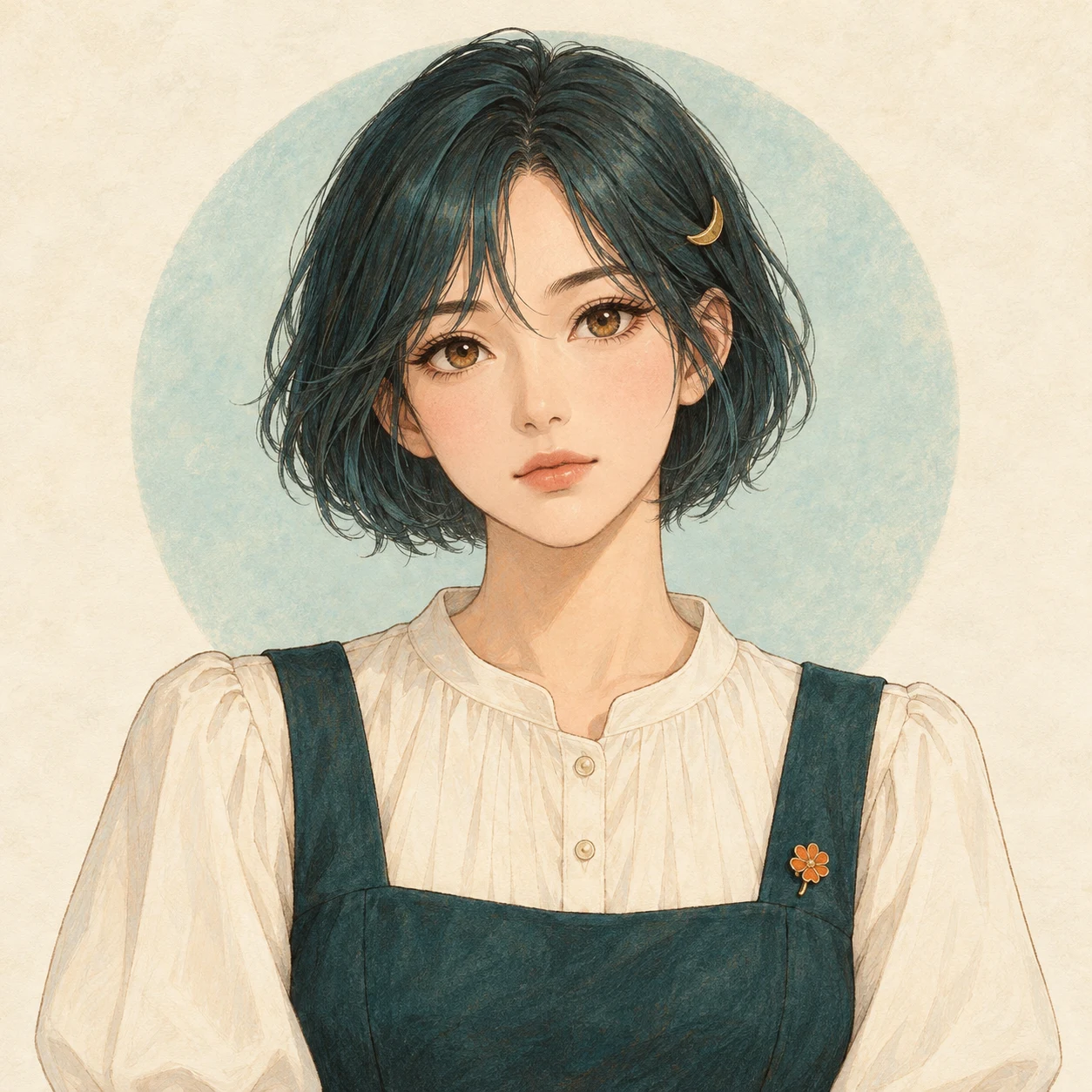
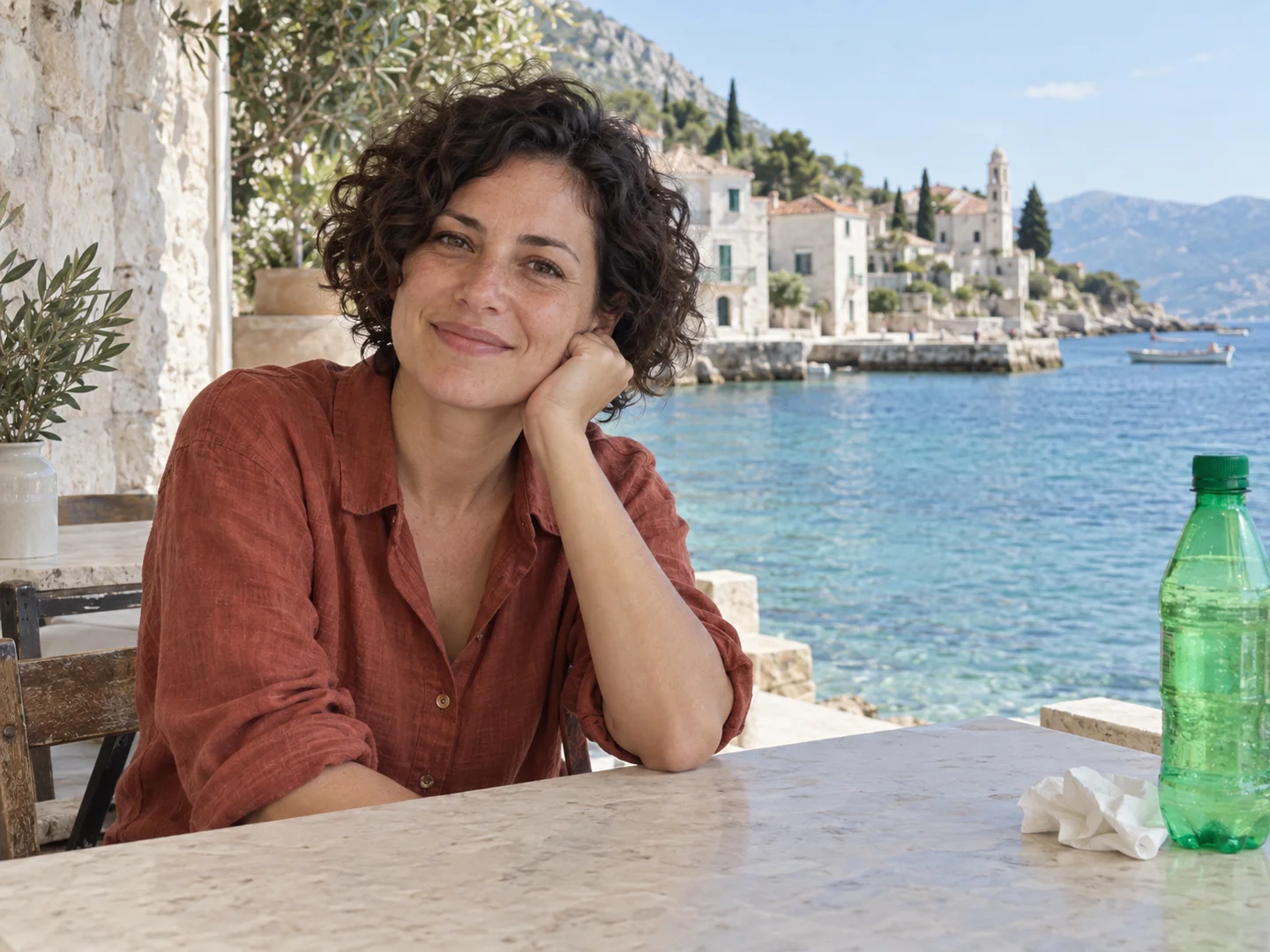
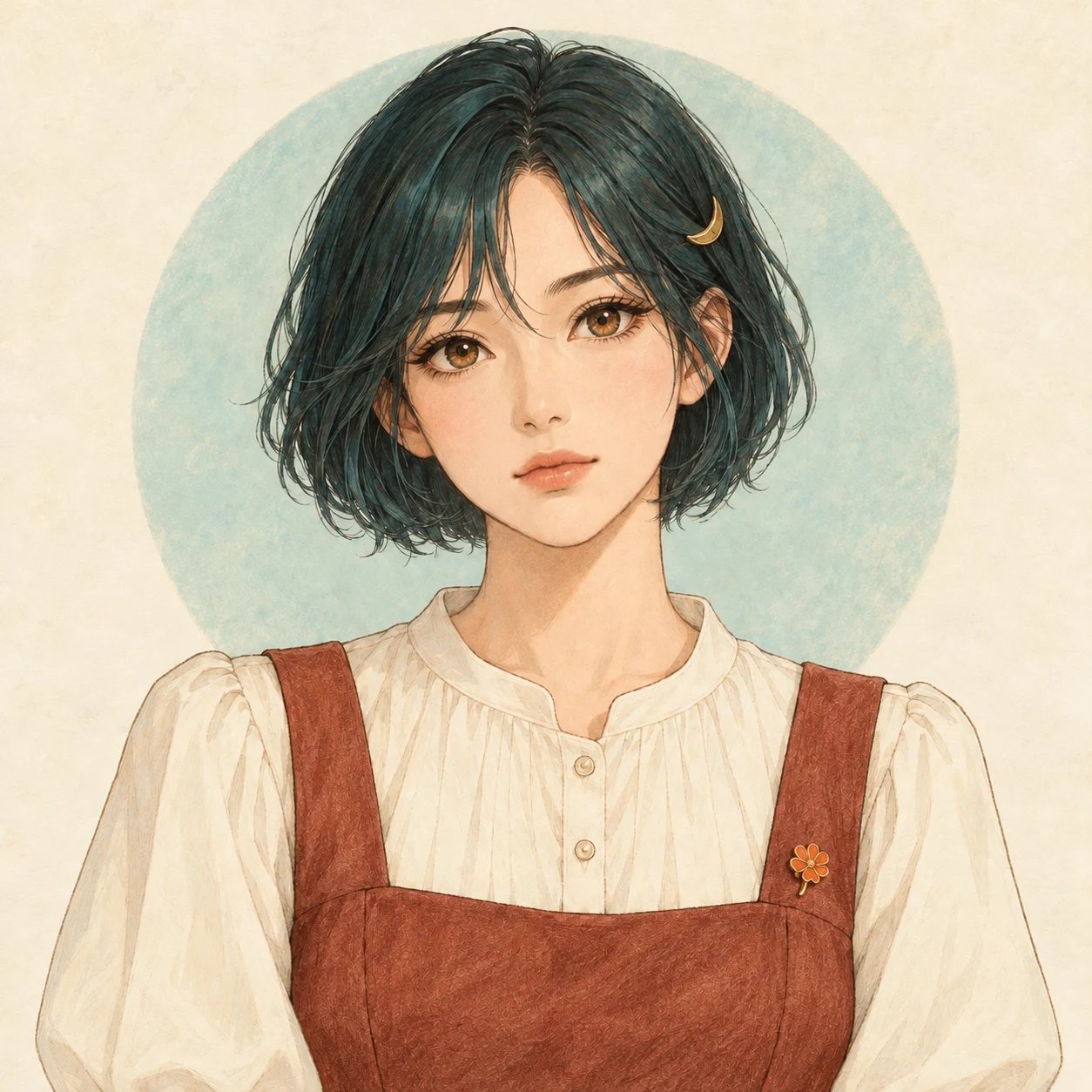
Borrow a color, keep your character
Image 1 is the character being edited. Image 2 supplies only the rust color of the shirt. The result changes the pinafore color and keeps the original character and setting.
Edit the character in image 1. Change only her pinafore to the muted rust color of the shirt in image 2. Keep the face, expression, hairstyle, ivory blouse, accessories, pose, background, and illustration style from image 1. Do not copy the person or setting from image 2.
Loads the original, any references, and the instruction. You choose when to generate.
If you want a new expression, you may not need a second image at all. Add a reference when it explains something your words don't.
Borrowing a color and changing an outfit are different requests
Decide which part of the reference you like. For a skirt color, keep the original cut and fabric. For a new outfit, describe the neckline, sleeves, pattern, and shape you want to try.
For a color-only edit, add a sentence like this
Use image 2 only as a reference for the rust color. Keep the cut, fabric, folds, and position of the pinafore in image 1; change only its color. Preserve the person, pose, background, and illustration style from image 1.
Check the color, then look for an unwanted face, pose, setting, or photographic texture from the reference. If those appear, remove unrelated references and spell out each image's role again.
Make the next request smaller
If the smile works but the outfit changed, go back to the original and tighten the instruction. If you like this version, choose Continue editing: the result becomes your new original and the extra reference images stay attached. Check the images before you submit the next change.
Keep this version. Make the smile a little softer, with lips closed. Keep the eyes, hair, clothing, and background as they are.
Download versions you like along the way. Small edits are easier to compare than a new expression, pose, outfit, and background all at once.
Check three things before your next edit
Open the full image and compare it with your original. Look at both the requested change and the parts you liked already.
- Does it still look like your character?
- Compare eye shape and color, the face outline, hair, and recognizable accessories. Watch for changes in facial proportions.
- Did this edit do what you asked?
- Check the strength of the smile, whether the lips are closed, or whether the outfit has the intended color. Judge this one goal first.
- Did anything else change?
- Compare clothing details, line quality, the background, and crop. A good-looking detail still needs a full-image check.
If the character looks right and only the smile needs adjusting, continue from this version. If the face or style has drifted, upload the original again. To return to the first inputs through History, find the entry that used your original upload, then choose Restore creation. Review the restored inputs before choosing to generate.
Keep a result, or pick it up later
- Download
- Save the finished image to your device. Downloading it again does not spend generation credits.
- Continue editing
- Bring a result into your next edit. Review the attached original and references, then write the next change.
- History → Restore creation
- Bring back the saved input images, instruction, and settings. Use the same browser, or the account you created with.
- Pro with the same inputs
- Generate a new result with the original inputs at a higher quality setting. This uses paid credits; it doesn't just enlarge the result you already have.
Check the model and cost before generating
Start with GPT Image 2 Low using your weekly free credits. Expand References & image settings to see the selected model and output shape. The generation button shows the credit cost. Pro needs paid credits; you can keep editing on Low when that suits your task.
Common editing questions
Gender Swap AI
Have an image in mind? Try one small edit.
Bring your own original, or load the character example with its instruction.
Open the AI Photo Editor